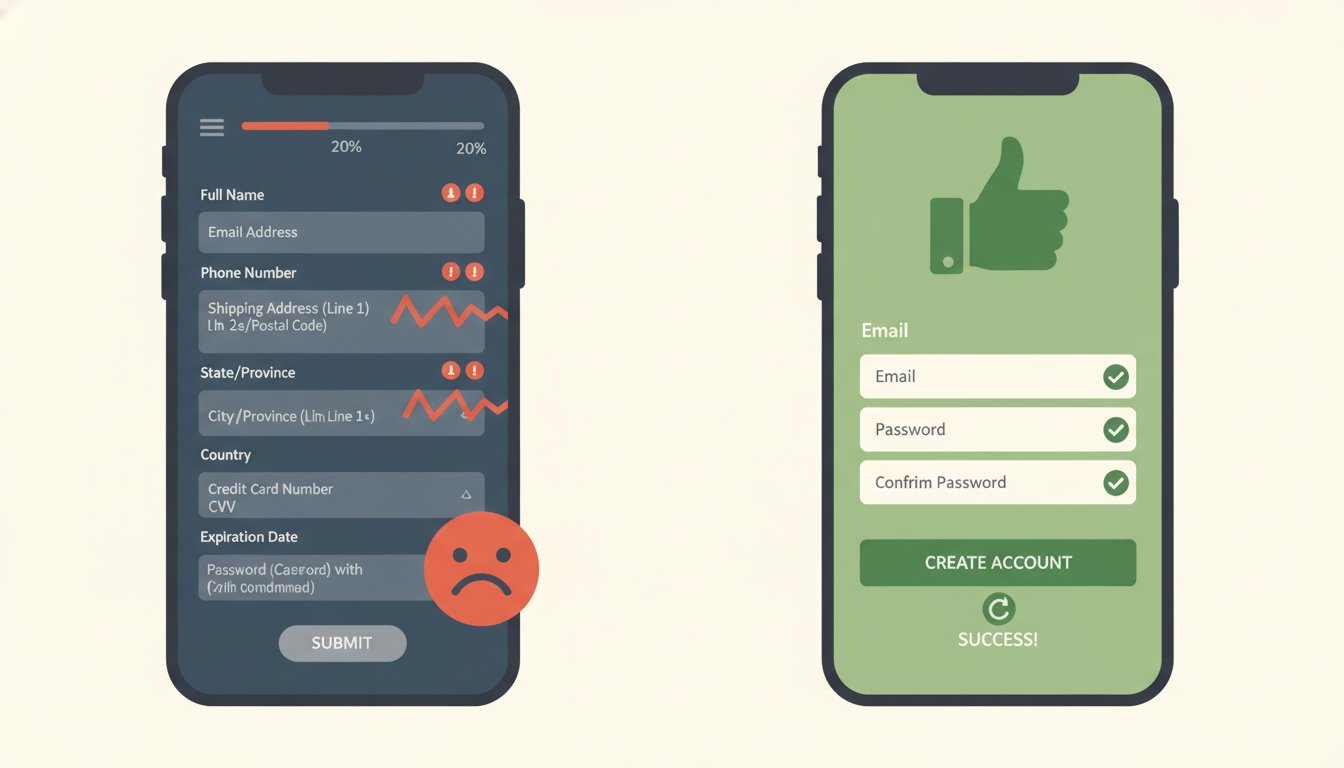
Your form “works”, but the leads don’t show up… or they trickle in?
Most companies go for the comfortable explanation: “the page looks old”, “we need to change the button color”, “let’s use a different background”. And yes, design matters… but in lead capture forms, conversion dies from small friction points: a poorly thought-out field, an error nobody understands, the wrong keyboard on mobile, a reCAPTCHA that blocks half the world, or zero measurement to know where the flow breaks.
Here’s a technical and practical diagnosis: five concrete friction points (the kind we see when auditing sites at Gulupa Digital) and how to fix each one without using “redesign everything” as an excuse.
If your form doesn’t convert, it’s almost always this (quick answer)
Friction in lead capture forms = anything (UX, technical or trust-related) that puts a “but…” between the user and the submit button.
In practice, conversions drop for five repeatable reasons:
- You ask for too much data at first contact (and people drop out).
- It’s awkward on mobile (wrong keyboards, endless scrolling, impossible fields).
- Errors don’t help (confusing validation, rigid rules, invisible messages).
- “Security” that punishes (intrusive reCAPTCHA, slow scripts, a form that fails).
- You don’t measure it (and end up guessing instead of fixing).
If you only have 5 minutes: check your form on a phone. If it takes you more than 25–35 seconds to fill in “without thinking”, there’s already accumulated friction.
Express diagnosis (to find the gap without meeting anyone)
| Friction | Typical symptom | Quick fix | What to measure (minimum) |
|---|---|---|---|
| Too many fields | High abandonment before submitting | Cut to 3–5 fields or split into steps | form_start → form_submit_success |
| Awkward on mobile | Mobile conversion collapses | type / inputmode / autocomplete |
form_submit_success by device |
| Confusing errors | “Invalid value” and rage clicks | Specific messages + inline validation | form_error by field |
| reCAPTCHA/scripts | Slow, or breaks in Safari/with adblock | v3 + honeypot + native fallback | load time + errors |
| No measurement | “Few leads” with no diagnosis | GA4/GTM with real events | funnel: view → start → submit |
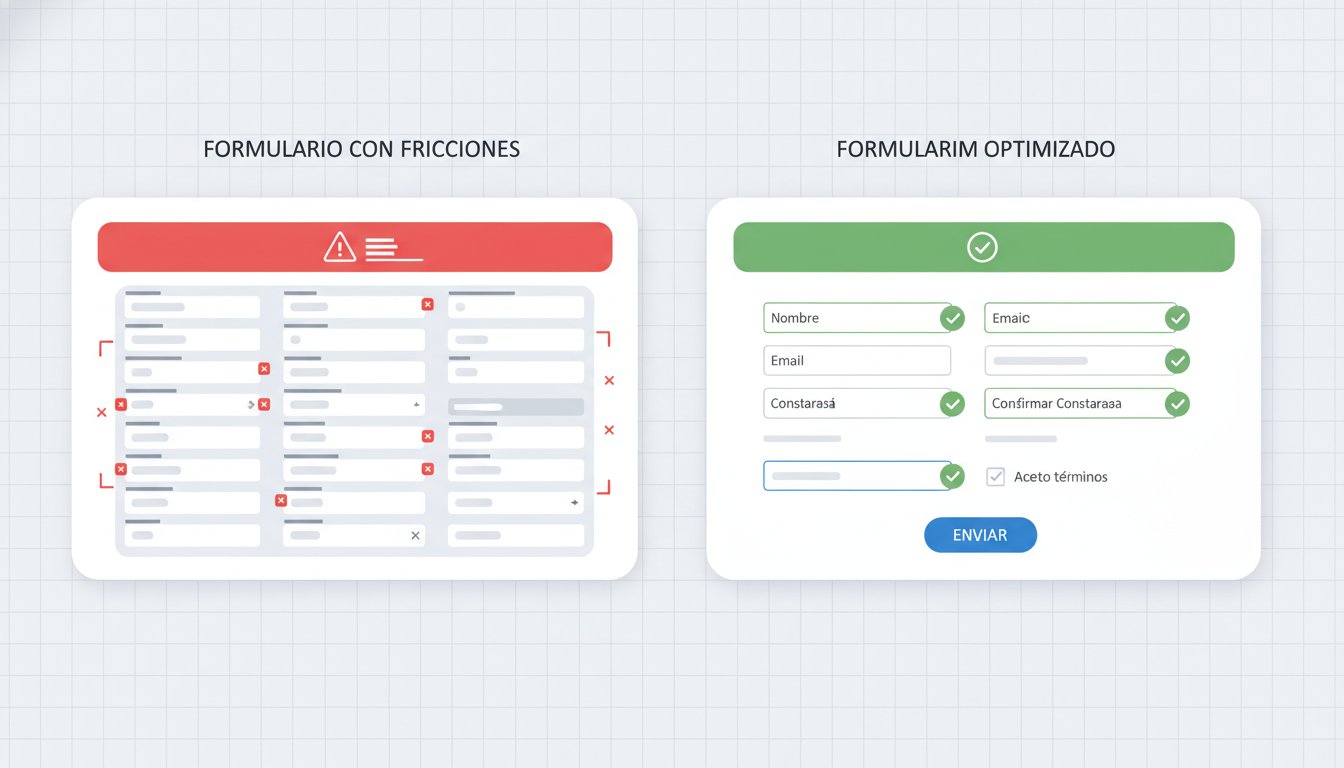
1) You ask for too much, too soon (and users punish you)
It feels “professional” to ask for full name, company, job title, city, budget, team size, industry, how they heard about you, plus a long message.
In real life, that feels like an interrogation. And users respond with the only power they have: closing the tab.
Signs this friction is hurting you
- Your form has more than 6–7 required fields for a first conversation.
- You ask for things users don’t have clear yet (an exact budget, dates, “which solution do you want?”).
- Your conversion rate drops a lot on mobile (on a phone, typing is friction multiplied by 3).
How to fix it (without losing information)
- Define the form’s real goal: booking a call? A quote? A diagnosis? If you can’t say it in one sentence, the form will end up asking for “everything”.
- Keep 3–5 fields for the first step. For most B2B and service businesses:
- Name
- Phone (optional if you already offer WhatsApp as an alternative)
- Company (if applicable)
- One short open question (“What are you looking to achieve?”)
- Use progressive profiling (asking in stages). For example:
- Step 1: contact details
- Step 2 (later): project details
- If you need a piece of data “no matter what”, explain why next to the field: “Estimated budget (so we can recommend a realistic route and not waste your time)”.
For lead capture forms, 3 to 5 fields usually maximize conversion without destroying quality. The rest can be asked later (or in stages).
If you like, we’ll do a quick review of your form and tell you which fields are unnecessary and which are missing to improve lead quality. Start here: contact us.
2) Your form hates mobile (and your traffic lives on mobile)
Some forms “just about pass” on desktop… and are torture on mobile.
On mobile the issue isn’t aesthetic. It’s operational friction: users have one hand, little time and zero patience.
Typical mobile friction points (the ones that cost the most conversions)
- Fields without the right keyboard (you ask for an email and get a regular keyboard; you ask for a number and get a keyboard with letters).
- Autocomplete disabled “for security” (spoiler: it doesn’t make you more secure, just slower).
- Labels that disappear when you type (placeholders used as labels) and users get lost.
- Errors that appear below the field, but users don’t see them because they’re scrolled up.
- Tiny checkboxes and links impossible to tap.
How to fix it (technical and actionable)
- Set input types:
type="email"for emailtype="tel"for phoneinputmode="numeric"where applicable
- Enable autocomplete intelligently:
autocomplete="name","email","tel","organization"
- Use real labels (not just placeholders). If users make a mistake, they should be able to understand what they were filling in.
- Make the button big and clear (at least 44px tall) and keep a sticky header from covering the error.
- Reduce scrolling: group fields, avoid endless text and, if the form is long, split it into steps.
If you want the most practical test: open your form on your own phone and time how long it takes to fill in without thinking. If it takes more than 25–35 seconds for a simple capture, you have accumulated friction.
If your conversion drops on mobile, the problem is almost always the wrong keyboard, blocked autocomplete, confusing labels or errors that can’t be seen.
If your traffic is mostly mobile (it almost always is), it’s worth auditing the form closely. At Gulupa we do it as part of our demand generation systems: lead generation.
3) Validation sabotages you: confusing errors, strict rules, invisible messages
“Please enter a valid value.”
That sentence has killed more forms than any button color.
Validation exists to help, but many forms use it as punishment: aggressive regex, fields that get wiped, generic red messages or errors that appear once you’ve filled everything in (so you have to guess where you went wrong).
Signs this friction is active
- The form flags an error, but users don’t know what or how to fix it.
- The phone field doesn’t accept normal formats (spaces, +57, hyphens) and users give up.
- The form reloads and erases what was typed when something fails.
- The button doesn’t activate and nobody knows why.
How to fix it (simple rules that lift conversions)
- Validate inline and as early as possible, field by field.
- Error messages with instructions, not judgment:
- Bad: “Invalid value”
- Better: “Enter an email like name@company.com”
- Better (phone): “Include the country code if applicable. E.g.: +57 300 123 4567”
- Allow human formats. Normalize on the backend. Users shouldn’t have to fight your regex.
- Don’t erase data when there’s an error. If users already typed it, respect it.
- Flag the error where it occurs and, if the form is long, scroll to the first error and focus it.
A good form error message has two things: what happened and how to fix it (in one sentence). “Invalid value” is useless.
If you need a solid technical reference, Google has accessibility and form best-practice guides on web.dev (useful for development teams): web.dev
If your form has “intermittent bugs” or strange errors, that’s technical debt disguised as “marketing”. Write to us and we’ll review it with conversion in mind: contact us.
4) Badly implemented “security”: reCAPTCHA, scripts and speed that take your leads away
Yes, there are bots. Yes, there’s spam. But the typical response (adding a giant reCAPTCHA, 3 third-party scripts and a form loaded at the very end) usually turns out expensive.
When a form takes a long time to load, breaks in Safari, blocks VPNs or asks you to “select all the traffic lights”, the lead doesn’t “wait”. It leaves.
Security/technology friction we see all the time
- A visible reCAPTCHA v2 on mobile taking up half the screen.
- Embedded form scripts (CRM, widgets) that load slowly or fail.
- Dependencies blocked by ad blockers.
- A form that only appears after 8 MB of resources have loaded.
How to fix it (without opening the door to spam)
- Prioritize reCAPTCHA v3 or less intrusive alternatives (depending on your stack). Users shouldn’t have to “pass a test” to leave their email.
- Implement a honeypot (a hidden field for bots) + server-side rate limiting. Hardly anyone does it, and it works.
- If you use embedded third-party forms, try:
- Deferred (defer/lazy load) loading of the script
- A fallback: a native form if the script fails
- Check Core Web Vitals on the form page. A bad LCP hits conversions directly (and SEO). You can start with PageSpeed Insights: pagespeed.web.dev
- Make sure submission is resilient:
- A clear “sending…” message
- Prevention of double submission
- Controlled retry on network errors
Useful “security” in forms shouldn’t be felt. If users have to solve a puzzle or wait for a script to load, you’re filtering out real clients.
If your team says “that’s a hosting problem”, it’s usually a mix of front-end + third parties + lack of prioritization. And while they argue, opportunities are walking out the door.
If you want a complete diagnosis (performance + security + conversion + measurement) and not a list of “change the button”, see how we run an opportunity engine: lead generation.
5) You aren’t measuring it: the form breaks and you don’t even notice
This is the most expensive friction because it looks like “everything is fine”.
Without measurement, you only see the end result (few leads) and start changing things at random: you change the design, change the copy, raise the ad budget… when the real problem was a 400 error, a submit that doesn’t fire or a form that doesn’t work on iPhone.
What you should measure (minimum viable)
- Form views (not just page views)
- Form starts (first focus/click on a field)
- Errors (by field, if possible)
- Successful submits (a real event)
- Abandonment (they start but don’t submit)
How to fix it (GA4 + GTM + business logic)
- Define “success” technically: a “confirmed submit” (not just “a button click”).
- Implement events in Google Tag Manager / GA4:
form_startform_error(with the field name or error type)generate_leadorform_submit_success
A technical tip: in GA4, if you can map your “successful submission” to a recommended event such as
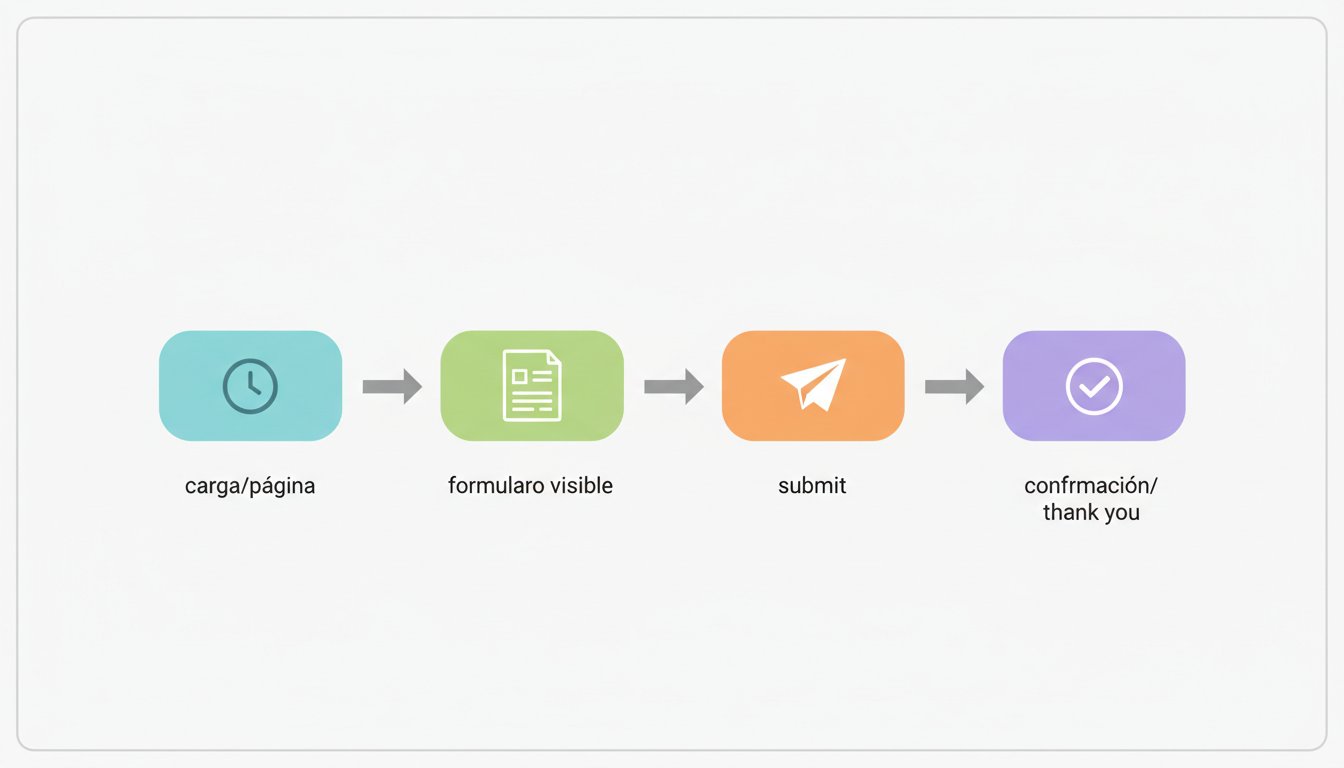
generate_lead, comparing and reporting becomes easier later. - Use a thank-you or confirmation page (or an equivalent event on a single-page site). That confirmation is your anchor for:
- measuring real conversions
- validating that the submit really completed
- reassuring the user (“done, we’ve got it”)
- Record UTMs consistently. If users arrive from ads and the form “loses” the UTMs, your attribution becomes a soap opera.
- Create a simple dashboard: visits → starts → submits → rate. With that you can already find where the gap is.
If you don’t measure starts, errors and successful submissions, you’re optimizing on intuition.
If you want an evidence-based UX reference, the Baymard Institute has strong research on form friction (especially e-commerce, but the principles apply): baymard.com
If today you can’t answer “at which step do users drop off?” with data, now is the time to fix it. Write to us and we’ll tell you what minimum instrumentation you need: contact us.
A quick checklist (so you can apply it today)
If you have 20 minutes and access to the site, check this:
- How many required fields does the form have?
- Do the right keyboards appear on mobile? Does it autocomplete?
- Do errors explain how to fix them, or do they just scold?
- Does the form load quickly and every time (Safari/Chrome, with and without adblock)?
- Is there a successful-submit event and a clear confirmation?
If you fail 2 or more, you have accumulated friction. And accumulated friction is basically an invisible tax on your marketing.
If you only make 3 adjustments this week
- Cut the form to 3–5 fields or split it into steps.
- Fix mobile (keyboards, autocomplete, labels, a big button).
- Measure the real submission (not the click): a successful-submit event + confirmation.
Frequently asked questions (FAQ)
What does “friction in lead capture forms” mean?
It’s any obstacle (technical, UX or trust-related) that makes a user who was about to leave their details give up before submitting the form.
How many fields should a lead capture form have?
In most cases, 3 to 5 fields for the first contact. If you need more, split it into steps or ask for the rest after the submission is confirmed.
Does reCAPTCHA lower conversion?
It can if it’s intrusive or breaks on mobile/browsers. Alternatives such as reCAPTCHA v3, honeypots and server-side controls reduce spam without punishing the user.
How do I know whether my form breaks on iPhone or Safari?
Test on real devices (not just emulators) and measure errors/successful submits. Without error events and confirmed submits, you’ll be guessing.
What should I set up in GA4/GTM to measure a form?
At a minimum: a start event (form_start) and a successful submission event (generate_lead or form_submit_success). Ideally also errors (form_error) and abandonment.
What is a “successful submit” (and why isn’t it the same as “clicking submit”)?
A successful submit is when the backend confirms it received the data (or when you reach a real confirmation). A click can happen even if submission fails because of the network, validation or a script.
How do I improve form conversion without lowering lead quality?
Reduce fields at the start and ask questions in stages (progressive profiling). Quality comes from asking the right thing at the right time and measuring which profile actually completes the submission.
Want your form to stop being a black hole?
If your traffic arrives but lead capture doesn’t take off, there’s almost always one of these friction points (or several at once). Fixing them is usually cheaper than “redesigning the website” and more profitable than blindly raising the budget.
And watch out: sometimes the form does capture, but the business loses out afterwards because of sales operations (timing, follow-up, stages). Lead follow-up between marketing and sales deserves its own review.
If you want us to review it with you and tell you where you’re losing opportunities (with technical and business judgment), see our lead generation system or write to us: